
10 User Onboarding Best Practices for Service Businesses

In short
User onboarding best practices for a service business aim at one result: every staff member and client completes a first booking in the new system without help. Set the system up before launch, give each role its own first tasks, run test bookings, show clients how to book online, then track where people get stuck and fix it.
- Split first tasks by role: the front desk books, moves and cancels; providers read their own calendar; the owner sets services and rules.
- Book, move and cancel a test appointment from a phone before launch, so your first real client meets a booking page that works.
- Judge the rollout by your booking records: the share of bookings clients make online and the tasks staff still need help with.
In this article15 sections
New booking software pays off only when your whole team uses it and your clients book through it. The weeks between signing up and that point are where a rollout can stall: staff keep a paper book as a backup, clients keep calling, and the new system holds half the schedule.
This guide sets out ten user onboarding best practices for service businesses, from setting up the system before launch to measuring what still goes wrong, with separate steps for staff and for clients. Twizzlo publishes this guide and sells booking software; you can see every scheduling feature on its features page. Every practice below works with any booking system.
1. Guided Setup Matched to Each Role
Start each person on the few tasks their role needs, not a tour of every screen. The owner or manager sets services, hours, staff access and policies; the front desk books, moves and cancels appointments; each service provider reads their own calendar and blocks time off. Use your vendor’s setup guide for those tasks first.
In a barbershop, the owner sets up each barber’s schedule and services such as a beard trim before anyone else logs in; the front desk then learns booking and check-in, and each barber only needs their own day. The first win is one booking made correctly without help.
How to Set Up First Tasks by Role
- Segment by Role and Goal: Write a separate first-task list for the owner, the front desk and the service providers. A manager needs the full schedule and staff hours, while a stylist just needs their own calendar and client list.
- Keep it Short and Action-Oriented: Break setup into small steps, each built around a single action, such as “Add your first service” or “Block off your first holiday.”
- Walk Each Person Through Once: Sit with each new user for their first tasks, then let them repeat the tasks alone.
- Note Where People Hesitate: Every question in week one points to a gap in your setup or your cheat sheet (practice 8).
2. Practice on Sample Bookings Before Launch
Let staff practice before real clients arrive. Create one test client and a few test appointments, have each person book, move and cancel them, then delete the test records before launch. People who have already done a task once in the new system are less likely to reach for the paper book.
A pet grooming business might book a test full groom with each groomer, move one to another day and cancel another, checking that every change lands on the right calendar.
How to Run Test Bookings
- Use a Short Script: Book as a client from a phone, reschedule it, cancel it, then add a walk-in at the desk.
- Label and Delete Test Records: Name them clearly, for example “TEST client,” and delete them before the booking link goes live so no test booking blocks a real slot.
If services, hours and buffer times are not set yet, this guide on how to schedule appointments covers that setup.
3. Turn Features On in Stages
Launch with the core booking workflow and add features once it runs cleanly. One workable order is the calendar and online booking first, automated reminders second, online payments third and reports last, so staff learn one new thing at a time instead of everything on day one.
In a salon, the first stage covers the services, such as a haircut and style, and the first client bookings. Reports on the busiest days become useful after a few weeks of bookings, and the second stylist’s schedule goes in when they join.
How to Stage the Rollout
- Define Clear Milestones: Map out the actions that show the team is ready for the next stage, such as “first appointment booked,” “first staff member added” or “first full week of online bookings.”
- Post the Order: Tell staff which feature comes next and when, so nobody wonders why reminders are not on yet.
- Move On When It Runs Clean: Start the next stage only after the current one runs a full week without errors.
4. Short Videos for Complex Workflows
Show complex tasks instead of describing them. Record a one- to two-minute screen video of each task your team finds hard, such as handling a same-day cancellation or moving a booking to another team member, and keep the videos in one shared folder a new hire can open when the task comes up.
For a spa with two branches, a short video can show how to move a staff member’s shift from one branch to the other. For a pet groomer, it can show how to handle a last-minute cancellation and offer the slot to another client.
How to Record Useful Videos
- Keep it Short and Focused: Each video should cover a single workflow and run a minute or two. Split a longer process, such as the end-of-day close, into a series of short videos.
- Address Real Scenarios: Record the tasks your team actually gets stuck on, with plain titles such as “Moving a Booking to Another Stylist” or “Checking In a Walk-In.”
- Let Staff Pick the Next Video: Ask which task they would most like to see recorded.
If your vendor publishes help videos, save links to the relevant ones in the same folder.
5. A Welcome Sequence for New Clients
Onboard clients as well as staff. A client’s first booking in your new system should be followed by a confirmation, a short note on what to expect at the first visit, such as arrival time, parking and your cancellation policy, and a thank-you afterward that makes the next booking easy.
A mobile groomer’s first-visit note covers where to park and how to prepare the dog; a salon’s covers arrival time and what to expect at a first color appointment.
How to Set Up a Client Welcome Sequence
- Segment and Personalize: Write a note for each service new clients book most. A first cut and a first color get different notes, and a nail studio’s note for manicures and pedicures differs again.
- Time Your Sends: Keep the order simple: the confirmation at booking, the first-visit note shortly before the appointment and the thank-you after it.
- Focus on Action and Value: Give each message one job and one action: confirm the booking, prepare for the visit or book the next one.
- Answer the Phone Questions in Writing: Note what new clients still call to ask and add it to the first-visit note.
6. A First-Week Checklist with Clear Milestones
Break the first week into small milestones each person can tick off. On day one, book and move an appointment; on day two, check in a walk-in and record a payment; by the end of the week, run a full day without the paper book. A ticked list shows staff their progress and shows you who needs help.
For a salon owner, the setup list might run: add the business details, create a first service such as a women’s haircut, set working hours, add a first staff member and put the booking page live. Each ticked item moves the business closer to its first online booking.
How to Build the Checklist
- Sequence for Value: Order the milestones so they lead to a visible result: from business details to a first service, then working hours and, finally, a live booking page.
- Mark Progress: Tick items off on a shared list and mention them at the next team meeting.
- Show the Outcome: After each milestone, look at what changed. Once the hours are set, for example, open the booking page and check that the new times appear.
- Watch for Stalled Items: If nobody finishes “check in a walk-in,” that task needs a video or a cheat-sheet line.
7. A Go-To Person and Fast Answers During Rollout
Name one person on each shift who answers setup questions, and write down how to reach your vendor’s support before launch day. Many rollout problems are small and urgent, such as a service with the wrong duration, and a quick answer keeps staff from falling back to the old system.
A new front-desk hire who cannot find how to move a booking at 10 a.m. on a Saturday needs an answer in minutes, from a colleague on the floor or from the vendor.
How to Set Up Rollout Support
- Choose the Right Go-To Person: Pick someone who knows both the system and the floor: the services, their durations and how a busy day really runs.
- Write Down Vendor Support: Note the channel, the hours and when to use it, for anything the go-to person cannot fix in a few minutes.
- Log Every Question for a Week: Write down each question and its answer. The log becomes your cheat sheet.
8. A One-Page Cheat Sheet Where the Work Happens
Put help where the work happens. A one-page cheat sheet beside the front-desk screen, covering how to book, reschedule, cancel, check in a walk-in and take a payment, answers routine questions without a call. For clients, the same idea means your policies sit on the booking page, next to the button they press.
A cancellation policy written in one or two plain sentences next to the Book button reaches a client before they commit to a time, not after a missed visit.
How to Write the Cheat Sheet
- Write for the User: Use the words your team uses. A pet groomer does not need the system’s terms; they need to know what buffer time means for their day.
- Keep it Brief: One or two lines per task is enough. A task that needs more than that needs a video (practice 4).
- Update It Weekly: Add the answers from the question log (practice 7) and remove lines nobody needs anymore.
9. Peer Learning Inside Your Team
Pair each new or hesitant staff member with a colleague who already uses the system well, and spend a few minutes of each weekly team meeting on one tip or one mistake to avoid. Staff who do the same job often explain a tool better than a manual does.
A groomer who has worked out how to book a large-breed groom with the right duration can show the others in five minutes.
How to Set Up Peer Learning
- Buddy Each New Hire: Pair every new hire with an experienced colleague for their first week, so questions go to a person on the floor first.
- Thank Helpers by Name: Mention the colleagues who helped others at the team meeting.
- Keep One Weekly Slot: Reserve a few minutes of each team meeting for one tip, shown on the screen staff actually use.
10. Measure the Rollout and Fix What Slows It
Measure the rollout from your own booking records instead of guessing. Each week, check the share of bookings clients made online, the tasks staff still asked for help with and booking errors such as wrong durations or double bookings, and ask staff and new clients one question about what confused them.
For a growing pet grooming business, one useful measure is how long a new front-desk hire takes to book, move and cancel without help. A run of questions about moving bookings between staff is a signal to add a video or a cheat-sheet line for that task.
How to Measure the Rollout
- Pick Three Measures Before Launch: Track the share of bookings clients make online, staff help requests each week and booking errors. Write down the first week’s numbers so the second week has something to compare against.
- Survey Users at Key Moments: Ask new clients one question after their first online booking, and ask staff one question after week one, such as “What was the most confusing part of setting up your services?”
- Review Weekly with the Front Desk: Go through the measures and the question log together; the front desk usually sees problems first.
User Onboarding Best Practices at a Glance
The table below sums up the ten user onboarding best practices in this guide: who each one is for, what to do and the sign that it is working. Use the last column as a checklist at the end of your first two weeks.
| Practice | Who it is for | What to do | Sign it is working |
|---|---|---|---|
| 1. Guided setup by role | Owner, front desk, providers | Give each role only the tasks it needs first | Each person finishes their first tasks without help |
| 2. Practice on sample bookings | All staff | Book, move and cancel test appointments, then delete them | Nobody reaches for the paper book on launch day |
| 3. Features in stages | Owner or manager | Calendar and online booking first; reminders, payments and reports later | Each stage runs a full week without errors before the next |
| 4. Short videos | Staff facing a hard task | Record a one- to two-minute screen video per hard task | New hires find the answer in the folder, not by asking |
| 5. Welcome sequence | New clients | Confirmation, first-visit note, thank-you with a rebooking link | Fewer first-visit questions by phone |
| 6. First-week checklist | Each staff member | Tick off daily milestones | Every item ticked by the end of week one |
| 7. Go-to person, vendor support | Staff | One named person per shift; vendor support written down | Questions answered the same shift |
| 8. Cheat sheet, booking policies | Front desk; clients | One page at the desk; policies next to the Book button | Routine questions stop reaching the owner |
| 9. Peer learning | New or hesitant staff | Buddy pairs; one tip per weekly meeting | Staff show each other shortcuts |
| 10. Measure and fix | Owner or manager | Weekly check of online share, help requests and errors | Errors and help requests fall week by week |
A Two-Week Rollout Plan
A rollout of new booking software can fit into two weeks for a small team: set up and test before launch, switch the booking link on launch day, run the first-week checklist, then add the next feature in week two. The table sets out what staff and clients do at each stage.
| Stage | Staff | Clients | Check before moving on |
|---|---|---|---|
| Before launch | Set services, durations, hours, staff access and policies; run test bookings; print the cheat sheet; name the go-to person | Existing appointments entered in the new system | Every test booking, change and cancellation worked from a phone |
| Launch day | Go-to person on the floor; paper book retired | Booking link switched everywhere; announcement sent | The first real online booking arrived on the right calendar |
| Week 1 | First-week checklist; a short end-of-day review | First-visit notes and thank-yous go out | Each staff member ticked every item |
| Week 2 | Turn on the next feature, such as reminders or payments; start the weekly measures | New clients asked one question about booking | Help requests and booking errors lower than in week 1 |
Tell existing clients once, in the places they already look: your next confirmations, a sign at the front desk, your email signature and your social profiles. A short message works: “Hi [first name], you can now book, move or cancel your appointments with [business name] online, at any time, at [booking link]. Your upcoming appointments are already there. Questions? Call us at [phone number].”
For clients who visit in person, a QR code that opens the booking page helps; this guide to business cards with QR codes covers printing one.
A salon can repeat the announcement through the channels in this guide to marketing for a beauty salon.
Where Twizzlo Fits: Staff Access, Shifts and Support
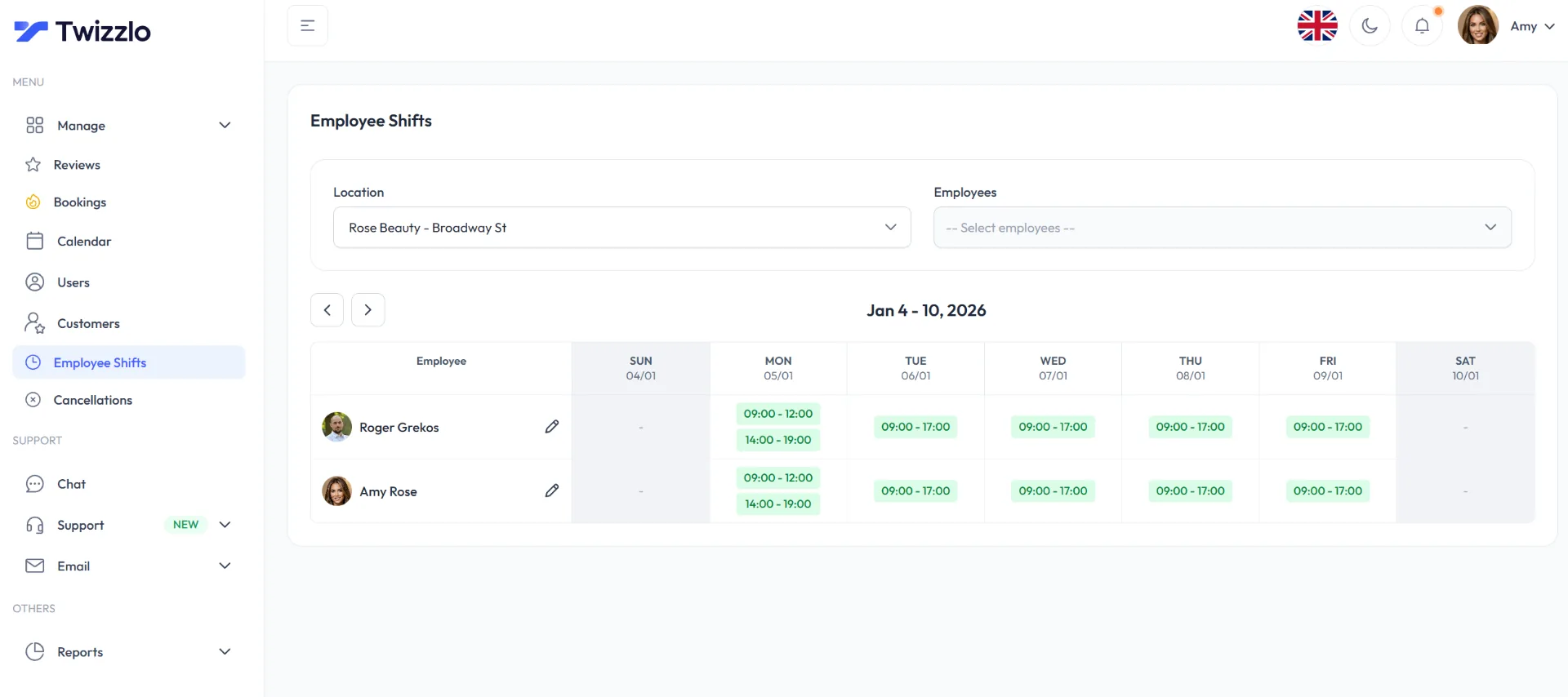
Twizzlo is web-based online booking and appointment scheduling software for appointment-based service businesses. It gives each team member their own access, with role-based permissions that decide what each person can see, and a calendar view of their own schedule (Twizzlo features page, read September 28, 2026).
Shifts can be planned across one or several locations, and clients can reschedule themselves instead of calling. Email confirmations and reminders are included on both plans. Text messages (SMS) are on Business Pro only: 50 SMS a month are included, then $0.03 each. Free has no SMS.
Free is $0 a month for up to 150 bookings, with no SMS. Business Pro is $29.99 a month per business for unlimited bookings, with 50 SMS a month included, then $0.03 each, and a 30-day money-back guarantee. Both plans include unlimited staff and locations, so adding a team member during a rollout never changes the price. Support is available 24/7 by email at support@twizzlo.com. Plan details are on the pricing page. Online payments carry your Stripe processing rate plus a 1.5% Twizzlo platform fee.
If you are rolling out booking software now, you can start on Twizzlo’s free plan, give each team member their own access and run the test bookings from practice 2 before you share your booking link.
User Onboarding FAQ
What is user onboarding?
User onboarding is the process of taking someone from first login to the point where a tool delivers real value. For an appointment-based business it runs in two directions: getting owners and staff comfortable with new booking software, and getting clients through their first online booking. Guided setup by role, test bookings, milestone checklists and a front-desk cheat sheet are all onboarding tools, aimed at the same goal: a fast first win.
How do you improve an existing user onboarding process?
Measure before you change anything. Track where staff hesitate, how long a new hire takes to book, move and cancel without help, and which tasks generate questions. Ask new clients one question after their first online booking, then fix one step at a time and check the same measures a week later.
How long should user onboarding take?
The first session should produce a visible win, such as a first service created or a test booking made and moved. For a small team, a rollout of new booking software can take about two weeks: setup and testing before launch, a first-week checklist, then the next feature. Track how long each milestone actually takes and stretch the plan if a check fails.
What is the difference between onboarding staff and onboarding clients?
The principles are the same: reduce friction and deliver a quick first win. The paths differ. Staff need role-based onboarding: an owner should see the dashboard and staff scheduling, while a stylist only needs their own calendar and client list. Clients need a friction-free first online booking. Segmenting by role keeps each group from wading through features that are irrelevant to them.
Which user onboarding best practice should a small business implement first?
Map the first-use success path. Identify the one action a new user must take to see value, such as booking an appointment or setting work hours, and focus the entire initial experience on that one goal. Then pick supporting tools: short videos for complex workflows like staff scheduling, or a front-desk cheat sheet for quick questions. For most teams, the first win is an appointment booked, moved and canceled correctly without help.
How do you train staff on new booking software?
Train one role at a time on the tasks that role performs, using your own services and test bookings rather than a generic demo. Give each person a short checklist, pair them with a colleague who knows the system, keep a cheat sheet at the front desk and check a week later which tasks still need help.
How do you get existing clients to book online?
Tell them in the places they already look: in your confirmations, on a sign at the front desk, in your email signature and on your social profiles. Say what changes, give the booking link and explain that existing appointments carry over. Staff can also offer to book a client’s next visit online with them before they leave.
How do you know a booking software rollout is working?
Look at your booking records after the first two weeks. A rollout is working when most routine bookings go through the new system, clients book online without calling to check, staff handle bookings, changes and cancellations without asking for help, and booking errors such as wrong durations are falling week by week.
Sources and methodology
- Twizzlo features page (opens in a new tab)Read . Supports: Twizzlo access for staff, role-based access to decide what each person can see, a calendar view per staff member, employee shifts across one or several locations, client self-rescheduling, email confirmations and reminders on both plans and SMS on Business Pro, and the Employee Shifts screenshot (same image)
- Twizzlo pricing page (opens in a new tab)Read . Supports: Twizzlo plans, booking cap, SMS allowance and price, unlimited staff and locations, money-back guarantee, 24/7 email support and the online payment fee
From our editorial policy
- We do not publish invented quotes, studies, statistics, customer stories or product tests, and we do not imply hands-on use of a product when the research came from the vendor's public documentation.
- To report an error, email support@twizzlo.com with the subject line "Correction: [page URL]". Tell us what is wrong and, if you can, link a source.
Update history
- : Rewrote the practices for businesses rolling out booking software to staff and clients, added a two-week rollout plan, and removed unsourced targets and stock images.
Start free, upgrade when you grow
Flat-rate booking software. No per-seat, per-chair or per-location fees.
- Free plan up to 150 bookings a month, not a trial
- Business Pro is $29.99 a month per business for unlimited bookings, with a 30-day money-back guarantee
- 24/7 support by email