
How to Schedule Appointments and Optimize Your Booking Strategy

In short
To schedule appointments without double-bookings, run one calendar that takes online and phone bookings. Define each service with a name, exact duration and price; set each staff member's hours and time off; share a 24/7 booking link; send confirmations and reminders; publish a cancellation policy; keep every location's schedule in one place; and review booking data weekly.
- Give every service a specific name, an exact duration and a total price, so the calendar blocks the right time for each booking.
- A common reminder sequence: a confirmation at booking, an email 48 to 72 hours ahead and a text 24 hours before.
- One staff member's daily capacity is their open minutes divided by each service's minutes plus buffer; check it before setting booking hours.
In this article10 sections
Learning how to schedule appointments is mostly setup work: a service menu with exact durations, staff hours, booking rules and reminders, all in one calendar that clients and staff share. Twizzlo publishes this guide and makes appointment scheduling software; a labeled section near the end shows where it fits. The five steps below work in any booking tool.

Manual vs. Automated Appointment Scheduling
Automated scheduling moves booking, confirmations and reminders from the phone and the paper book into software, so clients can book at any hour and every booking lands on one calendar.
Every minute spent on the phone confirming a booking is a minute not spent with a client. Software takes the booking, sends the confirmation and updates the calendar without anyone at the desk.
| Aspect | Manual Scheduling (Phone & Paper) | Automated Scheduling (Software) |
|---|---|---|
| Availability | 9 a.m. to 5 p.m., front desk required | 24/7, clients book anytime |
| Client Experience | Phone tag, potential for hold times | Instant booking & confirmation |
| No-Shows | Relies on manual reminder calls | Automated email/SMS reminders |
| Business Insights | Gut feeling, manual tallies | Real-time data on revenue, bookings |
Manual scheduling ties bookings to front-desk hours and reminder calls. Software takes bookings around the clock, sends reminders on a schedule and keeps the booking data in one place.
If you are still choosing a tool, compare the best appointment scheduling software, work through our small business booking software checklist, or see whether the free Google appointment scheduler is enough.
Step 1: Define Your Services and Staff Availability
Step 1 is a service menu and staff calendar the booking system can trust: every service with an exact duration and price, and every staff member with set hours, breaks and time off.
Picture a hair studio that lists a generic "Color Service." A client books it expecting a full balayage, but the system blocks only 90 minutes, the time for a simple root touch-up, and the stylist runs behind for the rest of the day.
The key is precision. Whether you are a massage therapist offering a "60-Minute Deep Tissue" versus a "90-Minute Hot Stone" massage, or a consultant with different tiers of strategy sessions, the details matter. When each service is precise, the calendar blocks the right amount of time and overlaps stop.
Set Up Your Services with Clarity
Your online booking page should answer a client's questions before they ask. Every service needs a simple description, a set duration and a clear price, which helps clients choose and lets the calendar block the right time.
When you build each service, include:
- Service Name: Get specific. Not just "Haircut," but "Men's Haircut & Beard Trim."
- Duration: The exact time from start to finish. If it's 45 minutes, say so.
- Price: No surprises. List the total cost.
- Description: A quick sentence on what the service includes, to set expectations.
Salons with long color and keratin services need this most; our page on salon appointment software covers per-stylist durations and buffer times.
Configure Staff Availability and Schedules
With services defined, the next job is recording who works when. Spreadsheets, paper calendars and sticky notes are a common bottleneck, especially as a team grows.
A single scheduling tool lets you set working hours for each employee, including days off, breaks and vacations. A spa manager, for example, can block a therapist's afternoon for a training session without touching anyone else's schedule. A tutoring business works the same way: with tutoring scheduling software, each tutor keeps their own teaching hours and parents book only the open sessions.
This matters even more with more than one location. A tattoo studio owner coordinating artists across two shops in two separate systems has no single view of who is free; one platform shows every artist at every shop in one place.
Set Your Booking Rules Before You Go Live
Booking rules decide which slots clients can see and take. Set them before you share the booking link, because each one closes off a specific scheduling mistake.
| Setting | What It Prevents | Example Setting |
|---|---|---|
| Service duration | A long service booked into a short slot | Full balayage and root touch-up listed as separate services, each with its own length |
| Buffer time | Back-to-back overruns and no time to reset a station | 15 minutes after each service |
| Staff hours and time off | Bookings with someone who is off | Each person's weekly hours, breaks and vacation entered once |
| Booking window | Clients booking hours not yet staffed | As far ahead as schedules are confirmed, for example 30 days |
| Minimum notice | A same-day booking you cannot prepare for | For example, 2 hours |
| Cancellation window | Late cancellations with no stated cost | For example, 24 hours, shown at booking and in every confirmation |
| Reminders | Forgotten appointments | A confirmation at booking, an email 48 to 72 hours ahead and a text 24 hours before |
Example settings are starting points, not benchmarks; set them from your own service lengths and staff schedules.
Worked example: a stylist open 9 a.m. to 5 p.m. with a 30-minute break has 450 bookable minutes. A 45-minute service plus a 15-minute buffer uses 60 minutes, so seven appointments fit in a day, and three stylists offer 21. Before you open online booking, check that your hours and buffers give the number of slots you expect.
Step 2: Take Online and Manual Bookings on One Calendar
Appointments arrive two ways, clients booking online and staff entering phone and walk-in requests, and both must write to one calendar in real time so the same slot is never sold twice.
Share Your Booking Link Everywhere
Put your booking page everywhere clients might find you: embed it on your website, add the link to your social media bios and include it in your email signature. The aim is to make booking easy whenever and wherever a client decides to book.
This matters for businesses like barbershops and tattoo studios. A potential client sees a fresh cut or a new piece of work on Instagram and wants to book right now. A direct link from your profile turns that interest into a confirmed appointment while you are with the client in your chair.
Add Phone and Walk-In Bookings to the Same Calendar
Even with online booking in place, some bookings will always come in by hand. A client might call on a lunch break, or a regular at your pet grooming salon might want to book the next visit before leaving. Your team needs a way to add these appointments quickly and accurately, without double-booking a slot that an online client just took.
In an integrated system, the sync is instant: when a staff member adds an appointment manually, that time slot disappears from your public booking page in real time, and the reverse is also true.
This is where good client management software helps. When a client calls, your team should be able to pull up their history in seconds, see past services and notes such as "prefers the window seat," and rebook their usual service in a couple of clicks.
Step 3: Cut No-Shows With Reminders and a Cancellation Policy
Step 3 has two parts: automated confirmations and reminders so clients remember, and a cancellation policy they see before they book so late changes carry a known cost.
Texting or emailing every client by hand breaks down on busy days, when reminders get forgotten and appointments are missed. Automating your emails and texts keeps reminders going out when the day gets busy.
Put Your Reminders on Autopilot
For a solo massage therapist or a busy salon owner, automated reminders replace evenings spent chasing clients. The system sends each message on schedule, so you can focus on your own work.
A common sequence has three messages:
- The Instant Confirmation: Send an appointment confirmation text or email the moment a client books. This confirms the appointment is locked in.
- The Gentle Nudge: An email sent 48 to 72 hours beforehand gives them a chance to plan their week.
- The Final Heads-Up: A quick text message sent 24 hours ahead reaches them the day before the appointment.
This cadence gives clients time to confirm, reschedule or cancel with enough notice for you to fill the spot. For what to write in each message, see our client communication best practices.
Publish a Clear Cancellation Policy
A clear, firm cancellation policy is the second part of this step. Clients should see it before they book, so the cost of a late change is never a surprise.
Your policy needs to be front and center during booking and in every confirmation email. Keep it simple and direct: "We require at least 24 hours' notice for all cancellations to avoid a fee."
Many booking systems let you require a card on file or a prepaid booking, so a late cancellation or no-show carries the fee your policy states. Our guide to a fair no-show charge covers amounts and wording.
Step 4: Keep Every Staff Schedule in One System
When a business has more than one staff member or location, every schedule should live in one system, so the owner sees who works where and fills gaps without a round of phone calls.
Picture a salon owner with stylists split between a downtown shop and a new suburban branch. With a separate calendar or spreadsheet for each, seeing who works where, spotting gaps in coverage and handling time-off requests all take phone calls.
Centralize Your Staffing for a Clearer View
One staff scheduling system replaces separate calendars with a single view of every employee at every location. From there you set individual hours, block out holidays and approve vacation requests.
You can see at a glance which massage therapist is free at your uptown spa versus your downtown one, which prevents double-bookings and keeps your busiest hours staffed. Our guide to multi-location scheduling software covers running bookings across locations in more depth.
Step 5: Review Your Booking Data Every Week
Booking data shows when the calendar is full, which services earn their time and which clients return, so a few numbers reviewed each week tell you where to adjust hours, staffing or promotions.
The Four Numbers to Track
Start with the key performance indicators (KPIs) that affect revenue and growth:
- Booking Volume: Are you slammed on Saturdays but quiet on Tuesdays? Knowing your peak and slow times is crucial for smart staffing.
- Cancellation & No-Show Rate: If this number is high, it's a red flag. It might mean your reminders aren't working or your cancellation policy needs teeth.
- Revenue Per Appointment: This shows which services are your heavy hitters and which ones might not be worth the time they take.
- New vs. Returning Clients: This shows how well you keep clients and how well you attract new ones.
For example, a nail studio owner reviews the booking data and sees that Tuesday mornings are consistently quiet. With that insight, the owner can launch a "Treat Yourself Tuesday" discount to fill those empty chairs and try to turn a slow period into a busy one.
Uncover Your Best Clients and Biggest Opportunities
Client records show who books most often and who has the highest lifetime value. Once you know who those clients are, you can reward them with loyalty offers or early access to booking so they keep coming back.
Reviewed every week, these numbers show which hours to open, which services to promote and which clients to look after first.
Where Twizzlo Fits in This Setup
Twizzlo is web-based online booking and appointment scheduling software for appointment-based service businesses, and each step above maps to a setting in it.
- Step 1: a services and pricing catalog, individual staff schedules, time-off and blackout dates, buffer times and custom booking rules.
- Step 2: a 24/7 online booking page with real-time availability, a per-location booking link, walk-in bookings and client self-rescheduling.
- Step 3: automated confirmations and reminders by email on both plans and by SMS on Business Pro, prepaid bookings and no-show fees.
- Step 4: multi-location staff shifts and schedules with centralized control.
- Step 5: insights on booking volume, revenue and new customers, in daily, weekly and monthly views.
Twizzlo has two plans. Free is $0 a month for up to 150 bookings, with no SMS, and includes the core booking, CRM, staff, insights and online payment features. Business Pro is $29.99 a month per business with unlimited bookings, 50 SMS a month and then $0.03 each, and a 30-day money-back guarantee. Both plans include unlimited staff and locations, so adding a stylist or a second location never changes the price. Support is available 24/7.
Online payments carry your Stripe processing rate plus a 1.5% Twizzlo platform fee.
Prepaid bookings work on any service: the client pays the full service price at booking. When a client does not show, you decide whether to keep or refund it, and no-show fees are applied at your discretion.
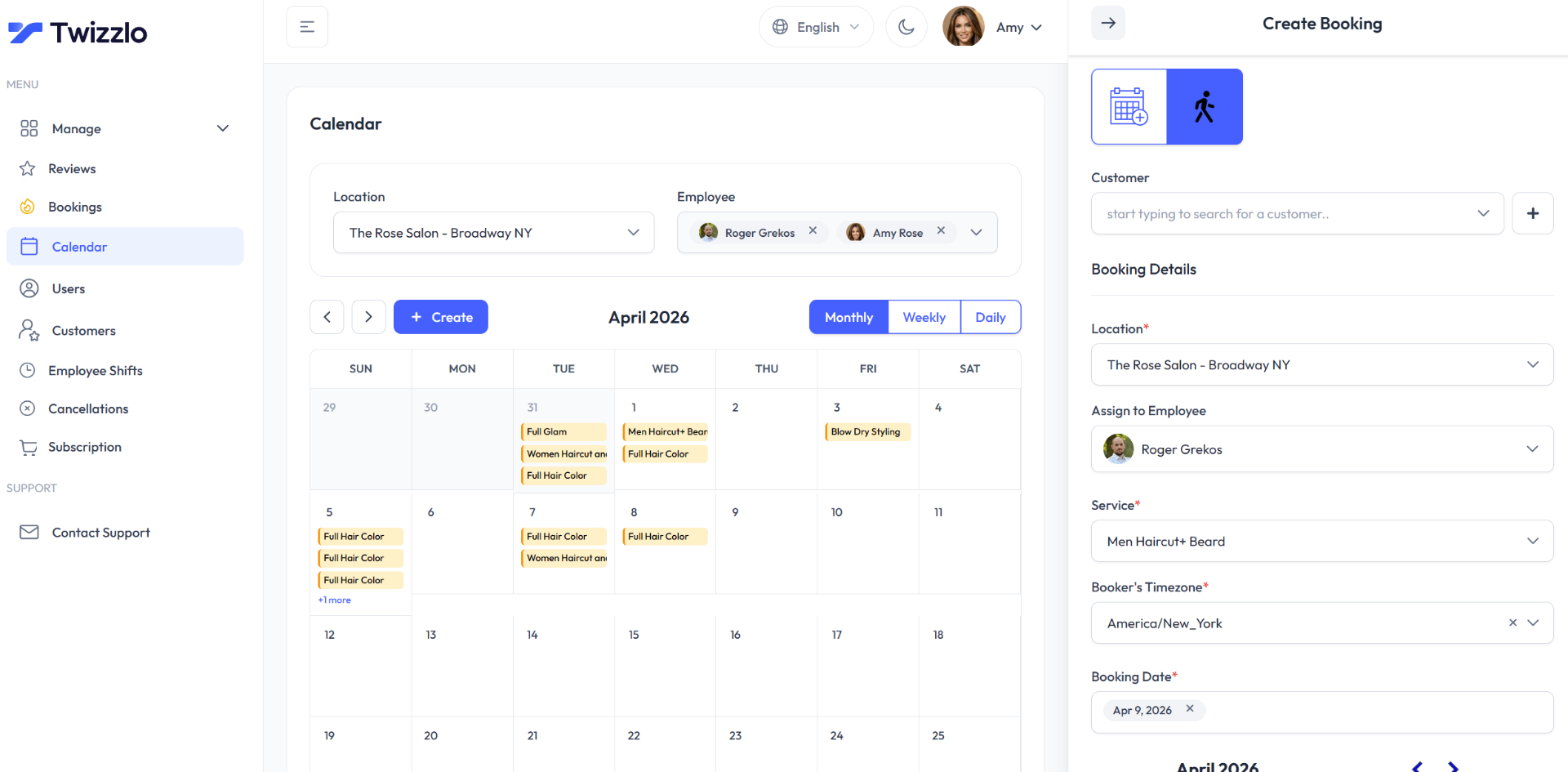
To see what each plan includes, compare the two plans.
How to Schedule Appointments: FAQ
What is the best way to schedule appointments for a small business?
Use one system that combines 24/7 online self-booking with quick manual entry for phone and walk-in requests, both writing to the same calendar in real time. Define every service precisely (specific name, exact duration, total price) and set each staff member's hours, breaks and time off so the calendar only offers slots you can actually deliver. Every booking should then trigger an instant appointment confirmation text or email automatically.
How do I prevent double-bookings when clients book online and by phone?
Real-time sync is the answer. When a staff member enters a phone booking manually, that slot has to vanish from the public booking page immediately, and the reverse is also true. Double-bookings usually trace back to two disconnected calendars or vague service durations: if a "Color Service" blocks 90 minutes but the client expects a full balayage, the day falls apart. One synced system plus exact durations prevents both failure modes.
What should an online booking page include?
Each service needs four things: a specific name ("Men's Haircut & Beard Trim," not "Haircut"), the exact duration, the total price, and a one-sentence description that sets expectations. Then place the booking link everywhere a client might find you, including your website, social media bios and email signature, so the impulse to book turns into a confirmed appointment in the moment it strikes.
Should I charge a no-show fee for missed appointments?
A clear policy with a fee attached signals that your time has value, and modern booking software can enforce it without awkward conversations. State the rule up front, for example 24 hours' notice to cancel without a fee, show it during booking and in every confirmation, and keep a card on file so the fee can be processed automatically.
How do I manage appointment scheduling across multiple locations?
Bring every location onto one dashboard instead of running separate calendars or spreadsheets per branch. Centralizing lets you set individual hours for every employee, spot coverage gaps, approve time off, and see which staff are free at which location at a glance, which prevents the double-bookings and administrative drag that disconnected systems create as you grow.
Which scheduling metrics should a service business track?
Four numbers matter most: booking volume by day and time (for smart staffing), cancellation and no-show rate (a red flag for weak reminders or a toothless policy), revenue per appointment (which services earn their slot), and new versus returning clients (the measure of retention). A nail studio that spots quiet Tuesday mornings can run a targeted promotion to try to fill them.
How many appointments can one staff member take in a day?
Divide the minutes a person is open for bookings by the minutes each appointment takes, including its buffer. For example, 9 a.m. to 5 p.m. with a 30-minute break leaves 450 minutes; a 45-minute service plus a 15-minute buffer takes 60, so seven appointments fit. With a mixed menu, add up each booked service and its buffer instead.
How far ahead should clients be able to book appointments?
Open the calendar only as far ahead as staff schedules are confirmed, so no one books hours that may change. If schedules are set a month out, a 30-day booking window fits. Add a minimum notice, such as two hours, so a same-day booking never lands in a slot you cannot prepare for.
Conclusion
Scheduling appointments well comes down to the five steps above: an exact service menu, staff hours, one calendar for every booking channel, reminders with a clear policy, and a weekly look at the numbers. Check the capacity math before you open online booking, and revisit your booking rules whenever your team or menu changes.
Sources and methodology
- Twizzlo features page (opens in a new tab)Read . Supports: Twizzlo booking, staff, reminder, prepaid booking, no-show fee and insights features named in the Where Twizzlo Fits section
- Twizzlo pricing page (opens in a new tab)Read . Supports: Twizzlo plans, booking cap, SMS allowance, guarantee, support and the online payment fee
From our editorial policy
- Twizzlo sells online booking and appointment scheduling software, the same category we write about. Twizzlo appears in our comparisons and roundups, and we have a commercial interest in you choosing it.
- We do not publish invented quotes, studies, statistics, customer stories or product tests, and we do not imply hands-on use of a product when the research came from the vendor's public documentation.
- To report an error, email support@twizzlo.com with the subject line "Correction: [page URL]". Tell us what is wrong and, if you can, link a source.
Update history
- : Rewrote the guide as five numbered steps, added a booking-rules table, a daily capacity example and two FAQs, corrected Twizzlo's plan details and removed an outdated market-size estimate.
Start free, upgrade when you grow
Flat-rate booking software. No per-seat, per-chair or per-location fees.
- Free plan up to 150 bookings a month, not a trial
- Business Pro is $29.99 a month per business for unlimited bookings, with a 30-day money-back guarantee
- 24/7 support by email