
Google Appointment Scheduler vs. Real Booking Software: When to Switch

In short
Google Appointment Scheduler is the booking page built into Google Calendar. On Google’s feature chart, read September 28, 2026, a free personal account gets one booking page; Google One Premium or an eligible Workspace plan adds more pages, email reminders and multi-calendar checks, and payments need an eligible Workspace plan. Reminders are email only.
Source: Google Calendar Help: Compare premium features for appointment schedules (opens in a new tab), read
In this article13 sections
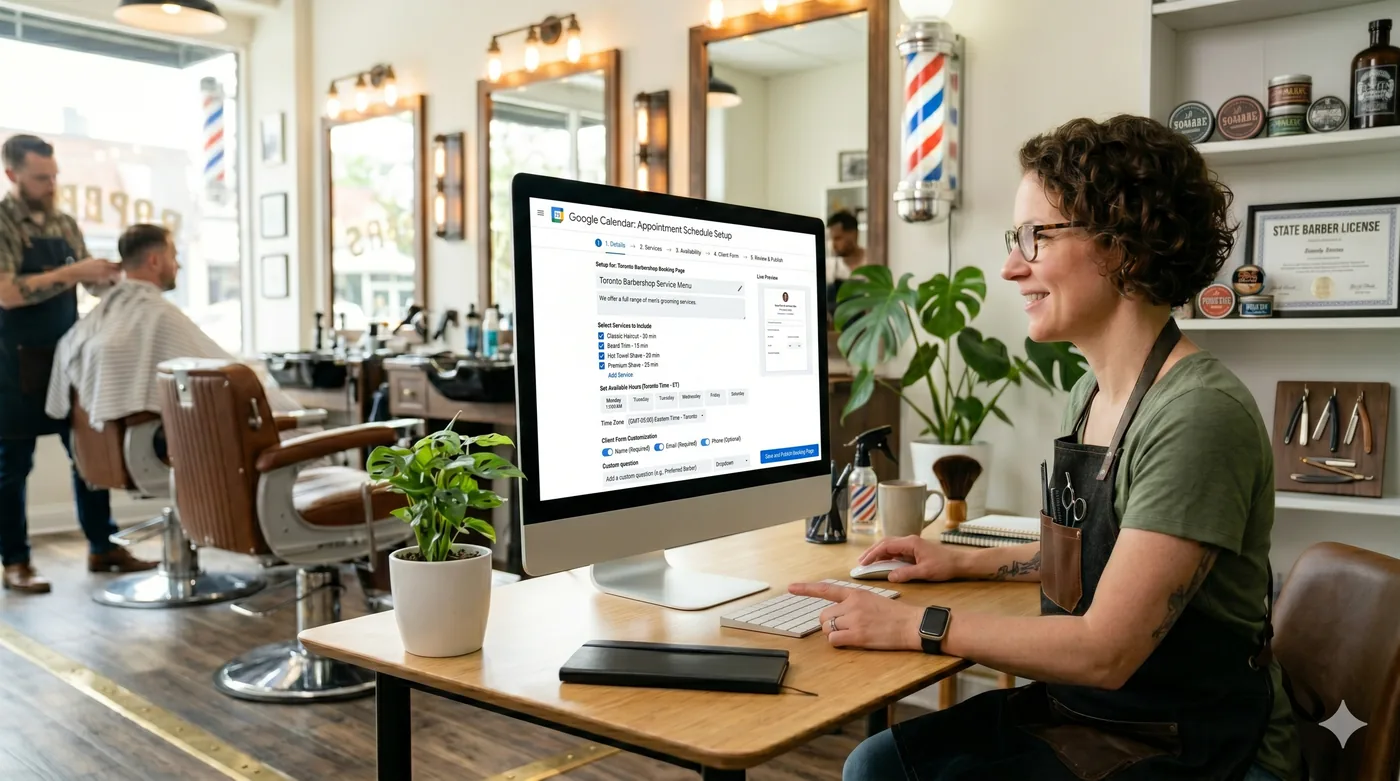
If you already live in Gmail and Google Calendar, Google Appointment Scheduler is the fastest way to let people book time with you, with no third-party tool, no extra login and no monthly fee for the basics. But “easiest” isn’t always “best for your business,” and Google’s limits show up the moment you need anything beyond a single booking page.
This guide walks through how to set up Google Appointment Scheduler in 2026, which features are gated behind which Google plan, and the point where a service business with staff outgrows it.
Twizzlo is our product; you can see every scheduling feature on its features page, and a labeled section below says where it fits. Every Google and competitor figure carries the date we read it.
Key takeaways
- Google Appointment Scheduler lets personal accounts and most Workspace plans create a shareable booking page, and it integrates natively with Google Calendar and Google Meet.
- Personal Gmail accounts get one booking page; Google One Premium adds pages and reminders; payments need eligible Workspace plans (Google’s chart, read September 28, 2026).
- Setup runs on a computer in Google Calendar; the mobile app can show and share booking pages but cannot create or edit them.
- It’s a great fit for solo Workspace users. Service businesses with staff, locations or paid services need a scheduler with staff calendars and text reminders.
What is Google Appointment Scheduler?
Google Appointment Scheduler is a built-in feature of Google Calendar that lets you publish a booking page where others can reserve time on your calendar. When someone books a slot, Google creates a calendar event, adds a Google Meet link if you’ve enabled it, and sends a confirmation to both parties. In Google Calendar, the feature is called an appointment schedule, so Google Calendar appointment schedules and Google Appointment Scheduler are the same tool.
It replaced Google’s older “appointment slots” feature in 2024 (Google Workspace Updates, March 18, 2024), and the rebuilt version is capable for solo use. Bookers don’t need a Google account; anyone with an email address can reserve a slot. An update that began rolling out on August 21, 2025, also gives users with no appointment schedule a pre-configured booking page based on their working hours (Google Workspace Updates, August 22, 2025).
Who can use Google Appointment Scheduler in 2026?
Availability and feature depth depend on the Google plan attached to your account. Per Google’s premium-feature comparison chart, read September 28, 2026, the breakdown:
- Personal Gmail accounts can create one booking page with one appointment type for free.
- Google Workspace Business Starter (priced per user on Google’s pricing page) also gets a single booking page, with no premium features.
- Google One Premium, Google AI Pro, and Google AI Ultra subscribers on personal accounts get multiple booking pages, automated email reminders, and multi-calendar conflict checks; their prices are on Google One’s plans page. Note what’s missing: payments and booker email verification are not part of the Google One tier.
- Workspace Individual adds Stripe payments and email verification for bookers on top of those features.
- Workspace Business Standard and Plus, and Enterprise Standard and Plus, along with Google’s Education and Nonprofits editions, get the full premium set, including appointment schedules on secondary calendars and up to 20 co-hosts.
- Google Workspace Essentials, Frontline, and the older G Suite plans don’t include appointment scheduling at all.
If you just need more booking pages and reminders on a personal account, Google One Premium is the upgrade to check first. If you need to charge cards at booking, you’re looking at Workspace Individual or Business Standard; Google Calendar charges no platform fee on those payments, and Stripe handles every payment and refund (Google’s payments help, read September 28, 2026). Double-check the comparison page before paying for an upgrade.
How to set up Google Appointment Scheduler step by step
Setting up an appointment schedule takes eight steps in Google Calendar on a computer. The steps follow Google’s setup help, read September 28, 2026:
Step 1: Open Google Calendar. Go to calendar.google.com on a desktop. The mobile app doesn’t currently support creating appointment schedules, only viewing and sharing them.
Step 2: Click Create. In the top-left corner of Google Calendar, click the Create button and select Appointment schedule from the dropdown.
Step 3: Name your appointment type. Give the schedule a clear title, something a client would recognize, like “30-Minute Discovery Call” or “Initial Consultation.” This is what shows on your booking page.
Step 4: Set the duration and meeting type. Pick the length from the duration menu, or choose Custom to set your own. Choose whether the meeting is in person, by phone, by video (Google Meet links generate automatically), or no specific location.
Step 5: Set your availability. Define which days and times of the week the slot is bookable. You can add multiple windows per day (mornings only, afternoons only, etc.), set buffer times between bookings, and cap how far in advance someone can book.
Step 6: Adjust booked appointment settings. Add a description bookers will see, set how much notice you need before a booking (Google’s default is a 4-hour minimum lead time), limit bookings per day, and (on eligible paid plans) connect Stripe for payment collection.
Step 7: Customize your booking page. Check the photo and name it shows from your Google Account, and add any booking form questions you want answered at booking (“What’s the best phone number to reach you?”, “What would you like to discuss?”).
Step 8: Save and share. Click Save, then copy the shareable booking page link. Paste it into your email signature, your website, your Google Business Profile, and anywhere else clients might find you. Google’s sharing help also gives embed code for a booking button or an inline booking page on your website.
Integrating with Google Calendar (and the rest of Google Workspace)
The native integration with Google Calendar is the main reason to use Google Appointment Scheduler. A few things to know:
- Conflict checking is automatic on the calendar where you create the schedule. When you mark yourself busy on that calendar, the booking page hides those times.
- Multi-calendar conflict checking is a premium feature. If you have a separate work and personal Google Calendar and you want both checked, you need Google One Premium or a qualifying Workspace plan. Otherwise the booking page only respects the primary calendar.
- Google Meet links generate automatically when you set the meeting type to video. The link is included in the calendar invite.
- Gmail integration is built in. When composing an email, click the Calendar icon at the bottom of the draft and pick a booking page to insert it directly into the message (Google Workspace Updates, July 15, 2025).
- The booking page itself doesn’t carry advanced branding. It shows the profile photo and account name from your Google Account plus your description; the one color setting in Google’s sharing help is for the button that opens the page from your website (read September 28, 2026).
Pros and cons of Google Appointment Scheduler
Google Appointment Scheduler’s strengths are its price and its fit with Google tools; its limits are plan gates, Google Meet as the only built-in video option, email-only reminders and team features that stop at co-hosts.
Pros:
- Native to Google Calendar: no third-party tool to install, no second login.
- Free for basic use on personal Gmail accounts.
- Clean, fast booking experience for clients.
- Automatic Google Meet links for video calls.
- Quick insertion into Gmail drafts, plus a link or embed code for your website.
Cons:
- Free personal accounts are capped at a single booking page and one appointment type.
- Extra booking pages, email reminders, and multi-calendar conflict checks sit behind paid Google plans, and payments require an eligible Workspace subscription.
- Limited branding: the booking page uses your Google Account photo and name.
- Built-in video is Google Meet only. No Zoom, no Microsoft Teams: a link to either has to be added to each booked event by hand.
- No staff scheduling beyond co-hosts, and no SMS reminders.
- Workspace Essentials, Frontline, and older G Suite plans can’t use it at all.
Google Appointment Scheduler vs other scheduling tools
In a side-by-side comparison, Google Appointment Scheduler trades capability for simplicity. Here’s the rough lay of the land:
- Versus Calendly. Calendly’s free plan also limits you to one event type (read September 25, 2026), but it integrates with Zoom, Microsoft Teams, Outlook, and CRMs such as HubSpot on Standard and Salesforce on Teams (Calendly’s pricing page, read September 28, 2026). Its paid plans are priced per seat, one seat for each host (see Calendly pricing). Google’s built-in video option is Google Meet. If you live entirely in Google, the two are close. If you don’t, Calendly wins on flexibility.
- Versus Acuity Scheduling. Acuity is a paid-only platform (no free tier; a 7-day trial) but adds text reminders, packages and gift certificates on its Standard plan, $34 a month billed monthly, on Acuity’s pricing page, read September 25, 2026 (see Acuity pricing). It’s built for businesses that sell services.
- Versus Twizzlo. Twizzlo is purpose-built for appointment-based service businesses (salons, barbershops, spas, wellness studios). It includes staff scheduling, multi-location support, client CRM and payments on both plans, plus SMS reminders on Business Pro, at a price that doesn’t grow as you hire. Google Appointment Scheduler is a booking page on one Google calendar; Twizzlo runs the whole front desk.
- Versus Doodle. Doodle’s strength is group polls, coordinating one meeting across many participants (Doodle’s home page, read September 28, 2026). Google’s tool lets each appointment time be booked once. Different use cases, both useful.
Google Appointment Scheduler vs dedicated booking software
| Feature | Google Appointment Scheduler | Dedicated booking platforms | Twizzlo |
|---|---|---|---|
| Price | Free for one page; premium features via Google One Premium or eligible Workspace plans, billed per user for Workspace | Paid plans from $12 a month per seat or user (Calendly Standard, Setmore Pro) or $20 per account (Acuity Starter), billed monthly, read September 25, 2026; often priced per staff member | Free $0 for up to 150 bookings a month; Business Pro $29.99 a month per business |
| Booking pages | One on free accounts; multiple on premium plans | Multiple, usually tiered by plan | A 24/7 booking page and a per-location booking link |
| Staff scheduling | None (co-hosts only on Business Standard and higher Workspace tiers) | Included, but often billed per seat | Unlimited staff included |
| SMS reminders | Not available on any plan | Usually a higher tier or paid add-on | Email on both plans; SMS on Business Pro, 50 a month then $0.03 each |
| Payments | Stripe, only on eligible Workspace plans | Built in; processing fees vary | Stripe processing plus a 1.5% Twizzlo platform fee |
| Multi-location | No per-location settings in Google’s setup help | Often an add-on or enterprise tier | Unlimited locations included |
For the broader picture across all the major options, see our guide to the best appointment scheduling software.
What do Google and dedicated booking tools cost at one, three and five staff?
On monthly billing, three staff cost $36 a month on Calendly Standard, $34 on Acuity Scheduling Standard and $36 on Setmore Pro, on pricing pages read September 25, 2026; Setmore Free covers up to four users at $0. Google Workspace charges per user, so its bill also grows with each person who needs premium features.
| Tool and plan | Billed per | 1 staff | 3 staff | 5 staff |
|---|---|---|---|---|
| Acuity Scheduling | Account, by calendar count | $20 (Starter, 1 calendar) | $34 (Standard, up to 6 calendars) | $34 (Standard) |
| Calendly Standard | Seat (each host) | $12 | $36 | $60 |
| Calendly Teams | Seat (each host) | $20 | $60 | $100 |
| Google, personal account | Account | $0 (one booking page) | $0 each, one page per person | $0 each, one page per person |
| Workspace Business Standard | User | Per user; US price not read | ||
| Setmore | User | $0 (Free) | $0 (Free, up to 4 users) | $60 (Pro, $12 a user) |
| Twizzlo Business Pro | Business | $29.99 | $29.99 | $29.99 |
Subscription only, one location, billed monthly; card processing, text credits beyond allowances and add-ons excluded. Calendly counts each host as a seat; invitees need none. Acuity’s Standard plan covers up to six calendars. Setmore Free covers up to four users. Twizzlo Free is $0 a month for up to 150 bookings, with no SMS. Sources: the Acuity Scheduling, Calendly and Setmore pricing pages, read September 25, 2026; Google’s premium-feature chart, read September 28, 2026 (Google’s Workspace pricing page did not show US-dollar prices when read that day, so no Workspace price is shown); Twizzlo’s pricing page, read September 28, 2026.
What each paid plan adds for bookings:
- Acuity Scheduling: Standard adds text reminders, an appointment waitlist, memberships and packages, and gift certificates (read September 25, 2026).
- Calendly: Free includes one event type and one calendar connection; Standard and Teams need a seat for each host who connects a calendar (read September 25, 2026).
- Google: Google One Premium and eligible Workspace plans add more booking pages, email reminders and multi-calendar checks, and eligible Workspace plans add Stripe payments; the chart lists no text reminders (read September 28, 2026).
- Setmore: Pro adds SMS reminders with 500 SMS credits a month (availability varies by country), two-way calendar sync, deposits and the removal of Setmore branding, on Setmore’s pricing page, read September 25, 2026 (see Setmore pricing).
When Google Appointment Scheduler is enough, and when to upgrade
Google Appointment Scheduler is the right choice if every one of these is true:
- You’re a solo professional or freelancer.
- You only schedule one type of meeting.
- You’re already inside Google Workspace or comfortable using a personal Google account.
- You don’t take payment at booking, or you handle payments separately.
- You don’t manage staff or multiple locations.
- A simple, lightly branded booking page is enough.
Look elsewhere when:
- You have a team and need to coordinate availability across people.
- You charge clients at booking and want deposits or full payment integrated.
- You want SMS confirmations and reminders to cut no-shows.
- You need branded booking pages that match your website.
- You operate from more than one location.
- You want client history, repeat-visit tracking, and basic CRM features without bolting on another tool.
The transition from “Google handles my bookings” to “I need a real appointment scheduling app” comes when a solo practice hires its first employee or opens its second location. That’s the moment to plan ahead.
For the next step, our guides to small business booking software and online booking and payments cover choosing a tool and taking payment at booking.
Where Twizzlo fits when a Google booking page is not enough
Twizzlo is web-based online booking and appointment scheduling software for appointment-based service businesses: a 24/7 booking page, staff schedules, client records, email reminders and, on Business Pro, SMS reminders, with Stripe payments at booking.
Twizzlo has two plans. Free is $0 a month for up to 150 bookings, with no SMS, and includes the core booking, CRM, staff, insights and online payment features. Business Pro is $29.99 a month per business with unlimited bookings, 50 SMS a month and then $0.03 each, and a 30-day money-back guarantee. Both plans include unlimited staff and locations, so adding a staff member or a second location never changes the price (Twizzlo’s pricing page, read September 28, 2026). Online payments carry your Stripe processing rate plus a 1.5% Twizzlo platform fee. Support is 24/7 by email.
Prepaid bookings work on any service: the client pays the full service price at booking. When a client does not show, you decide whether to keep or refund it, and no-show fees are applied at your discretion.
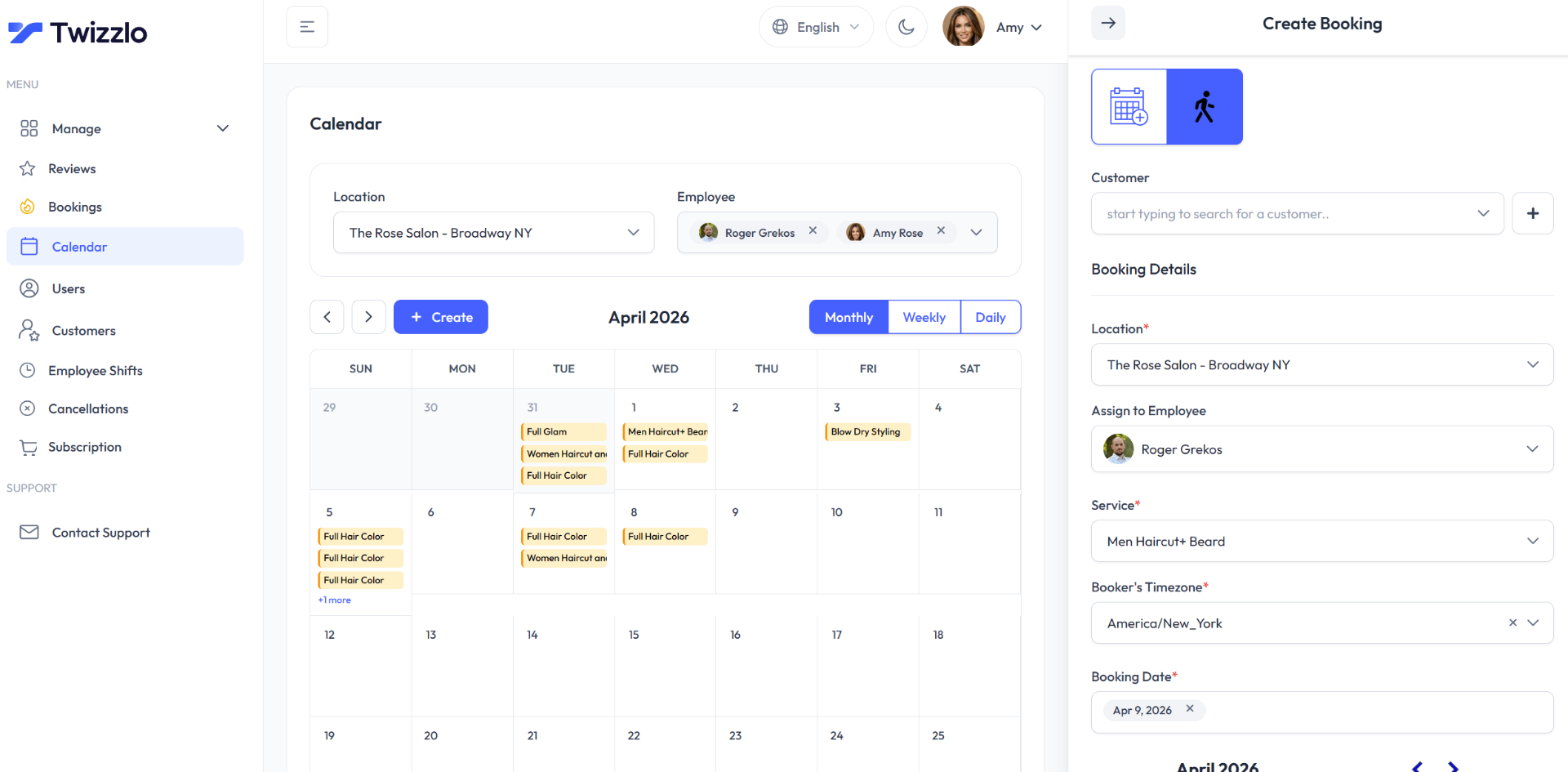
Bookings live in Twizzlo’s own calendar, with a calendar view per staff member, a per-location booking link, buffer times, walk-in bookings and client self-rescheduling. Each client record keeps client history and a visit log, notes and preferences, and total spend per client. You can compare the two plans on the pricing page.
Frequently asked questions
Is Google Appointment Scheduler free?
Yes, for personal Gmail accounts limited to one booking page with one appointment type. Premium features (multiple booking pages, email reminders, multi-calendar conflict checks) require Google One Premium or an eligible Google Workspace plan, and Stripe payments require Workspace Individual, Business Standard or Plus, Enterprise Standard or Plus, or an Education or Nonprofits plan (Google’s feature chart, read September 28, 2026).
Can clients book without a Google account?
Yes. Anyone with any email address can book through your appointment schedule page. Bookers don’t need a Google account.
Does Google Appointment Scheduler send reminders?
Email reminders are a premium feature: up to five per appointment, with text you can’t edit (Google’s setup help, read September 28, 2026). They’re not available on the free personal-account tier. Google’s feature chart lists email reminders only, with no text-message option, so if SMS matters to your no-show rate, you’ll need a different platform.
Can I take payments through Google Appointment Scheduler?
Yes, but only on eligible paid plans. Stripe integration is available on Workspace Individual, Business Standard and Plus, and Enterprise Standard and Plus, as well as Google’s Education and Nonprofits editions. Under Google’s feature chart, read September 28, 2026, Google One Premium does not include payments, and the free personal-account tier doesn’t support them either. Google Calendar charges no platform fee; Stripe handles payments and refunds.
What happened to Google Appointment Slots?
Google retired the older “appointment slots” feature in 2024 and replaced it with the current “appointment schedules” system: the switch began July 18, 2024, old slot booking pages stopped working on August 8, 2024, and existing slots were not moved over automatically (Google Workspace Updates, March 18, 2024). The new tool is more capable, available to a broader audience, and doesn’t require bookers to have a Google account.
Can I customize the look of my Google Appointment Scheduler booking page?
Customization is limited. The booking page shows the profile photo and account name from your Google Account, plus your description and booking form questions; Google’s sharing help adds a color setting only for the website button that opens the page (read September 28, 2026).
Is Google Appointment Scheduler good for salons?
Only for the simplest setups: a solo stylist or barber offering one service type at one location. The moment you need a service menu with different durations and prices, per-staff calendars, deposits at booking, or SMS reminders, Google’s tool falls short. Once a second chair or a second service enters the picture, those gaps decide the move to dedicated booking software.
Can my whole team share one Google booking page?
Not really. Co-hosts (up to 20) exist only on Business Standard and higher Workspace tiers (Google’s feature chart, read September 28, 2026), and by default a schedule does not check co-hosts’ calendars for conflicts. Coordinating a team’s bookings is where dedicated scheduling platforms take over.
Why can’t I see appointment schedules in my Google Calendar?
Probably because of your Workspace plan. Essentials, Frontline, and older G Suite plans don’t include appointment scheduling. You’d need to upgrade to a newer Workspace plan to access the feature.
How do I edit an appointment schedule in Google Calendar?
Open Google Calendar in a desktop browser, click the appointment schedule on your calendar grid, and open its settings. From there you can change the title, duration, availability windows, buffer times, and booking form questions, then save. Changes apply to your booking page right away. Like creation, editing happens on a computer: the mobile app can show, hide and share booking pages but not edit them.
How do I turn off or delete a Google appointment schedule?
Open the appointment schedule in Google Calendar on a computer and delete it to stop accepting new bookings through its link. If you only want to pause bookings temporarily, edit the schedule’s availability instead: removing all open windows takes every slot off the booking page. Appointments that were already booked stay on your calendar as regular events until you cancel them individually, and links to a deleted schedule’s booking page stop working (Google’s help, read September 28, 2026).
Does Google Appointment Scheduler work on mobile?
For your clients, yes: the booking page is a normal web page, so anyone can book from a phone browser. For you as the host, it’s limited: the Google Calendar mobile app can show your schedules and incoming bookings, but creating or editing an appointment schedule requires a desktop browser. If you run your business from your phone, that gap matters day to day.
Are Google Calendar appointment schedules available on personal Google accounts?
Yes. A personal Google account can publish a booking page at no cost. Workspace accounts need a plan that includes appointment schedules: Business Starter gets one booking page, higher plans add premium features, and Workspace Essentials, Frontline and the older G Suite plans do not include the feature (Google’s feature chart, read September 28, 2026).
How does Google Appointment Scheduler compare with Calendly’s free plan?
Both start free. Calendly’s Free plan includes one event type and one calendar connection, on its pricing page, read September 25, 2026, and a personal Google account includes one booking page. Calendly’s paid plans are priced per seat, $12 a month on Standard and $20 on Teams, billed monthly; Google’s paid features come with Google One or Workspace plans.
Final thoughts
Google Appointment Scheduler does its job well as long as the job is small. For a solo professional with a Google account and one type of meeting, it covers the basics at no cost. The moment your business needs a team calendar, paid bookings with deposits, SMS reminders, or branded pages, you’ll feel the ceiling.
If your business is built around appointments, such as salons, barbershops, spas, wellness and personal services, a purpose-built platform is going to serve you better; the Twizzlo section above sets out what ours includes.
Sources and methodology
Prices read
- Google Calendar Help: Compare premium features for appointment schedules (opens in a new tab)Read . Supports: Plan-by-plan features: one booking page on personal accounts and Business Starter; premium features by plan; Essentials, Frontline and older plans excluded
- Google Workspace: Appointment booking in Google Calendar (opens in a new tab)Read . Supports: A no-cost booking page for one appointment type; multiple booking pages for different services and Stripe payment at booking on Business Standard; Google One Premium for personal use
- Google Calendar Help: Create an appointment schedule (opens in a new tab)Read . Supports: Setup on a computer only, duration menu, availability, 4-hour default lead time, bookings per day, meeting options, booking form, up to 5 reminder emails with fixed text
- Google Calendar Help: Share your appointment schedule (opens in a new tab)Read . Supports: Public booking page with profile photo and account name; booking button and inline embed code
- Google Calendar Help: Edit your appointment schedule (opens in a new tab)Read . Supports: Editing on a computer; the Android app shows or hides schedules; confirmation emails
- Google Calendar Help: Cancel appointments on your calendar (opens in a new tab)Read . Supports: Deleting a schedule: booked appointments stay and shared links stop working
- Google Calendar Help: Require payments for appointments (opens in a new tab)Read . Supports: Stripe payments on eligible Workspace plans; Google Calendar charges no platform fee; Stripe handles payments and refunds
- Google Workspace Updates: appointment slots replaced by appointment schedules (March 18, 2024) (opens in a new tab)Read . Supports: The July 18, 2024 switch, the August 8, 2024 end of slot booking pages and no automatic migration
- Google Workspace Updates: booking pages in Gmail (July 15, 2025) (opens in a new tab)Read . Supports: Inserting a booking page into a Gmail draft from the Calendar icon
- Google Workspace Updates: pre-configured booking page (August 22, 2025) (opens in a new tab)Read . Supports: Pre-configured booking page from working hours; sharing on web and mobile, creating and editing on web only
- Calendly pricing page (opens in a new tab)Read . Supports: Free plan with one event type and one calendar connection; Standard $12 and Teams $20 a seat a month billed monthly; seats for hosts only (integrations re-read September 28, 2026)
- Acuity Scheduling pricing page (opens in a new tab)Read . Supports: No free plan and a 7-day trial; Starter $20 (1 calendar) and Standard $34 (up to 6) a month billed monthly; Standard adds text reminders, waitlist, memberships and packages, gift certificates
- Setmore pricing page (opens in a new tab)Read . Supports: Free $0 for up to 4 users; Pro $12 a user a month billed monthly with SMS reminders (500 credits a month), two-way calendar sync, deposits and branding removal
- Doodle home page (opens in a new tab)Read . Supports: Group polls that find the time that works best for everyone in a group
- Twizzlo pricing page (opens in a new tab)Read . Supports: Twizzlo Free and Business Pro plans, SMS allowance, money-back guarantee, unlimited staff and locations, and the online payment fee
- Twizzlo features page (opens in a new tab)Read . Supports: Booking page, per-location booking link, buffer times, walk-ins, client self-rescheduling, calendar view per staff member, client history, prepaid bookings and the calendar screenshot
From our editorial policy
- Twizzlo sells online booking and appointment scheduling software, the same category we write about. Twizzlo appears in our comparisons and roundups, and we have a commercial interest in you choosing it.
- We do not publish invented quotes, studies, statistics, customer stories or product tests, and we do not imply hands-on use of a product when the research came from the vendor's public documentation.
- To report an error, email support@twizzlo.com with the subject line "Correction: [page URL]". Tell us what is wrong and, if you can, link a source.
Update history
- : Re-read Google's appointment schedule plans and help pages in September 2026 and dated each fact, added a cost table for teams of one, three and five with Calendly, Acuity Scheduling, Setmore and Twizzlo, corrected Twizzlo's plan details and added two FAQs.
Start free, upgrade when you grow
Flat-rate booking software. No per-seat, per-chair or per-location fees.
- Free plan up to 150 bookings a month, not a trial
- Business Pro is $29.99 a month per business for unlimited bookings, with a 30-day money-back guarantee
- 24/7 support by email